In a Crosstab, how can I have a reg limit number show up with a note or an asterisk (*)?
The Reg Limit Text dropdown on the Grouping / Formatting tab of the Crosstab Wizard form can be used to display text for a Reg. Limit in a Crosstab export. However, before you can do this you need to go to the Editor's Manage Lookups --> Reg Limits and enter an asterisk or a note into the RegLimitNotes field shown below.

Figure 1 - Edit Regulatory Limits form showing the RegLimitNotes field where you can add an asterisk or note for a Crosstab export.
Once you have created the note for the specific reg. limit desired, you then need to use the Reg Limit Text tool to select how you want to display it. The choices are shown in the figure below. Since you are using Reg. Limits, you should also check the Display Reg Limits and Print Reg Limit Legend check boxes to display them.

Figure 2 – The Reg Limit Text dropdown on the Grouping / Formatting tab of the Crosstab Wizard form.
However, this only works when you use Value and Flag for the output as shown below. If you select only Value (which is a numeric field), the Reg. Limits will not display.

Figure 3 – Selection of Value and Flag is required to show text on Reg. Limits.
You will still need to add some text explaining what the notation means to the Crosstab Template you have selected.

Figure 4 –Crosstab export showing the use of i (highlighted) and exceedances in red.
Why are my Regulatory Limits not showing up in reports or exports?
Regulatory Limits contain multiple required fields that must be matched with your data for them to work as expected. Several of the most common issues that will prevent them from being used in reports or exports like the crosstab are summarized below. Note however, the required settings in Reports and the Exports (like the Crosstab) must also be set correctly.
Sample Matrix Does Not Match the Sample or Is Not Set
The sample matrix of the reg. limit must match the matrix of the sample being compared for a comparison to be made. If the sample was imported with a Sample or Lab Matrix different from the regulatory limit, then no comparison can be made. The most common example of this is where the lab EDD uses a matrix of "Water" when the sample matrix is "Groundwater". This will need to be corrected either in the Sample or Analysis data.
The matrix for each individual parameter can be changed in the Editor --> Manage Lookups --> Parameters. If the Matrix needed is not shown, click on "Unknown" and using the dropdown select the correct Matrix and Units and click on OK. (Note that Unknown will simply be moved down one row when this is done.)
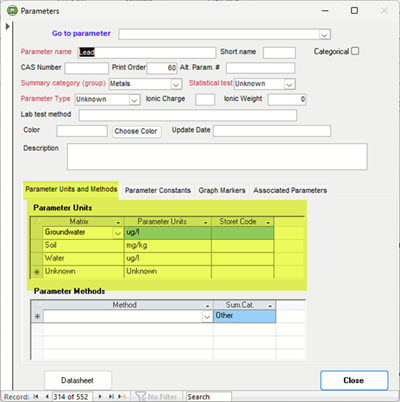
If you need to change the data and the data has recently been imported, the easiest option is to Undo the import, correct the EDD and reimport. Otherwise, you will need to Edit either the Sample or the Analyses data.
If the Regulatory Limits have the incorrect Matrix, you can edit this by clicking on the Regulatory Limits button in the Editor and next clicking on the Reg Limits button. This opens the Edit Regulatory Limits form where you can filter for the desired limits and then use the dropdown in the Matrix column to make changes.
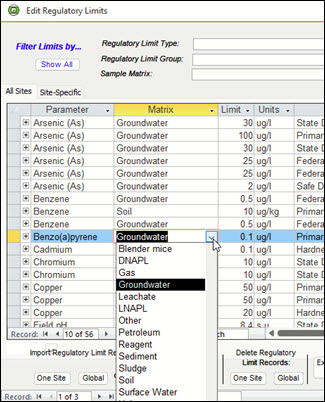
Reporting Units Can’t be Converted or No Conversion Available
While Enviro Data will attempt to convert both the analytical and reg. limit units to match to what is set in Parameter Units. If there is no conversion factor in the Unit Conversion table, the reg. limits with those units will be ignored because the reg. limit and analyses units do not match. The most common example is where a soil parameter with a unit of kg/mg is being compared against the same parameter but for ground water with a unit of ug/L.
If a conversion had not been setup, one can add a unit conversion from the Editor --> Manage Lookups --> Unit Conversion (under Multiple Tables).
Null (Blank) Values
One other problem is where a reg. limit was created without providing a limit value in the RegLimit (value) field. This can be a little tricky to detect and correct but below are two ways to find and fix these.
Editing Records in RegLimits Table
- The quickest way to find null reg. limits is to find and open the RegLimits table by pressing the F11 function key on your keyboard to open the object viewer in Access. (If the Tables is not selected, click the drop-down in the upper right and select "Tables" as shown below.)
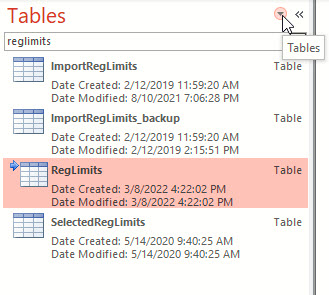
Finding the RegLimits table in Access.
- Use the drop down in the Limit field and Filter for Blank records as shown below.
- You can either correct or delete these records as needed, However, ensure that you filtered on the correct field, and that only records with no value in the Reg.Limits field are deleted.

Setting a filter to select only blank Reg. Limit records in the RegLimits table.
Editing Records using Edit Regulatory Limits form
- In the Editor, click on Regulatory Limits and then Limits in the Setup group to open the Edit Regulatory Limits form. In that form, click on the drop-down icon in the Limit column as shown below and select Sort Smallest to Largest. This will bring all those with no value to the top of the list.
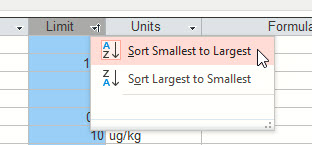
Sorting records in the Edit Regulatory Limits form.
- Scroll to the right a few rows at a time using the scroll bar at the bottom of this table until you can see both the Limit and Enabled columns in your screen.
- Turn off each of these “nulls” by unselecting them in the Enabled column.
- Note that there are two tabs on this form (highlighted on the left). These are for limits at All Sites or Site-Specific If you have limits for each, you need to do this for repeat Step 3 for each tab.
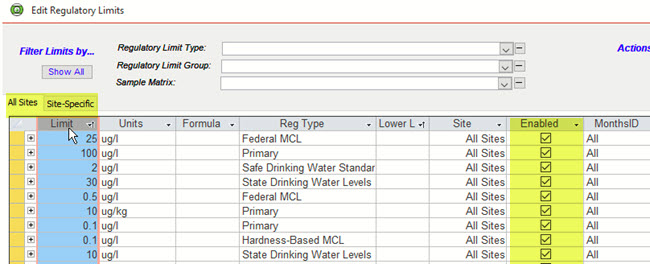
Enabling or turning off Reg. Limits in the Edit Regulatory Limits form
What are Regulatory Limits and how do I use them?
Regulatory Limits let you compare the incoming data to one or more currently selected regulatory limits to see if any of your data exceed regulatory standards. Of course, you will have to have entered (or imported) the regulatory limits that you want to compare to. Depending on the report, you may apply up to 12 regulatory limits to your data. Where you wish to compare one of more set of limits, you have to setup Regulatory Limit groups for the limits you have entered.
In Enviro Data you can enter the limits into the program, or import them from a spreadsheet file, which may be easier, especially if you have them in digital form.
There are two parts to setting up the limits - creating the limit types and entering the limits.
From the EDITOR, click on Manage Lookups in the Setup group and click on Reg. Limit Types.

This will bring up the Regulatory Limit Types form where you can add the regulatory limit type that you will be adding limits for. You can also set several options for how the limit will be displayed when a limit is exceeded. These include any permit options, whether you wish to display an exceedance when the result is at or exceeding the regulatory limit, the report order that will be used for various limit types, the background color when a limit is exceeded and various font options.
For example, you could enter “FA” for the Reg. Limit Type Code, and “Factory” for the Regulatory Limit Type. Then click on Close. Fill out the Activity Log and click on Done. Close the Manage Lookups form.
Now that we have entered the limit type we can import the limits.
Enviro Data comes with spreadsheet files that make it easy to import your limits. ImportRegLimits.xls is an empty file in this format, and ImportRegLimitsExample8.xls contains some example data. Fields in red font are required fields. Of course, the RegTypeCode and RegType must be the same as you entered above.
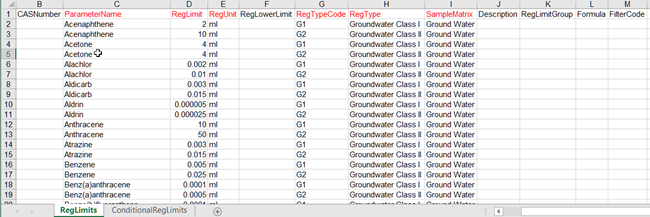
Open the ImportRegLimits8.xls file and enter some limit data. Save the file under a new name, and close Excel.
Select Import Data from the Editor Import / Edit section. This will open the form seen below.
Select “Reg Limits Import” from the dropdown box under File type and format. Use the Select button to browse for and select the file you created.
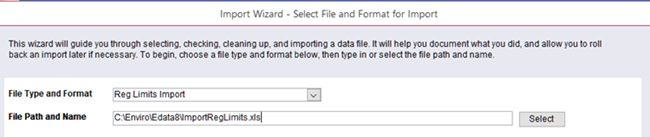
The remaining options in the Import Wizard apply only to analytical data import, so we don’t need to go through them.
Click on Finish to proceed with the import, then OK. You will see a popup telling you how many limits were imported.
You don’t have to import the limits before you import your samples and analyses. In fact, you don’t need limits at all unless you want to use them in your retrievals.
Beginning with Version 8D, reg. limits can now be tied to specific Stations.
For a better understanding of Regulatory Limits and Regulatory Limit Groups we recommend you see the section on Regulatory Limits in the Basics section of the User Documentation.
How can I display multiple regulatory limits in a crosstab export?
The crosstab report will display up to 12 limits but to display multiple regulatory limits in a crosstab or other report that supports them, you must first setup a regulatory limit group and then add the limits you require to this group. When creating groups, we recommend naming your group in a way you can identify it as a group such as using an “_” (underscore character) in front of the name to differentiate a single limit from a group.
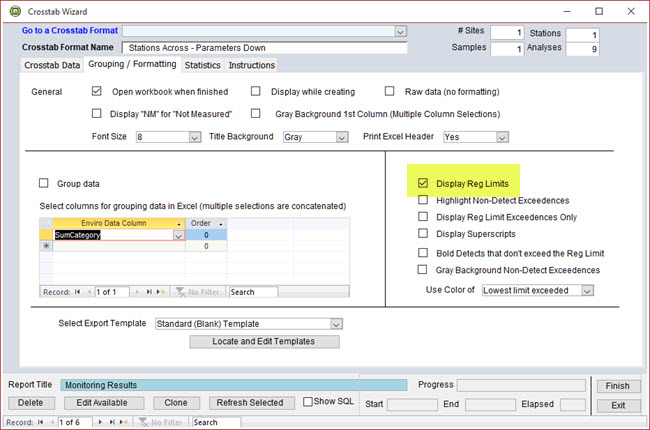
Additionally, you must have checked the Display Reg Limits check box shown below.
For more information see the FAQ on Why are my regulatory limits not showing up in reports or exports?
Can I combine a set of regulatory limits into groups?
The crosstab report will display up to 12 limits but to display multiple regulatory limits in a crosstab or other report that supports them, you must first setup a regulatory limit group and then add the limits you require to this group. When creating groups, we recommend naming your group in a way you can identify it as a group such as using an “_” (underscore character) in front of the name to differentiate a single limit from a group.
Additionally, you must have checked the Display Reg Limits check box shown below.
For more information see the FAQ on Why are my regulatory limits not showing up in reports or exports?