
A license file, GCSLicense.mde, stores information for concurrent use licensing in Enviro Data and is installed in a folder that is visible to all prospective users. This file is usually placed on a server and tracks how many licenses have been purchased and are actively in use. For a virtual machine (VM), it can be placed in the Enviro folder. If there is more than one VM, it can be placed on a shared drive. For a SQL back-end, either would be fine. Once licensing is set up, an additional file, GCS.lic, is placed on your computer and points to the licesne database. .
This file also allows you to “check out” a license for using Enviro Data while not connected to your network. Note that until a checked-out license is checked back in, it is not available to any other users. However, the lock file does allow for a fixed number of overuses in emergency situations. If you exceed your licensed usage both you and Geotech and Geotech will be notified.
If you have exceeded the allowed number of overuses, or a situation exists where a computer or VM that had a license checked out has not or cannot be checked back in, the license file will need to be reset to make it available again. This will require opening the lock file, GCSLicense.mde and editing it.
If you cannot locate the main license file go to another computer running Enviro Data and open the file C:\Enviro\Edata8\GCS.lic using a text editor like Notepad. You will find the path to the license file there but be careful not to make any changes and close the file without saving it.
Next use Windows Explorer to switch to the folder where GCSLicense.mde is located. Double-click on that file and it will open in MS Access. Create and run the query shown below.
SELECT * From CheckOut
This query will open the table shown below.

Identity the record of the computer that needs to be checked back and highlight it. Then, simply delete the record by pushing the Delete key. This will free up the locked license and allow another user to use it. The records should now look like the one shown below.
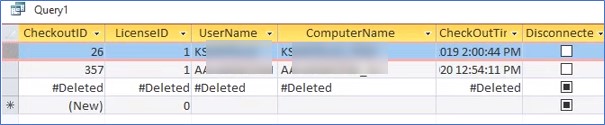
Simply close this table and file.
Back on the original computer open the EDITOR and VIEWER and follow the instructions to connect to the license database.
If you have any questions, please contact Support and we will be happy to assist.