
To import a few parameters, it is easiest to use Manage Lookup in the Editor and choose Parameters. However, if you have a list of new parameters in an Excel file, they can easily be imported. While all you need in this spreadsheet is the LongName and preferably CASNumber, the following fields are available. If you are importing a new list of reg. limits, you can also use that spreadsheet to import parameters. The correct field names as shown below should be in the header of your spreadsheet.
NOTE that any duplicated (identical spelling) names will be ignored. Additionally, if you import the same parameter with a different name, unless the CASNumber matches, it will create a duplicate parameter with the new name.
Also note that Parameter Name is AKA LongName. This is because the word "Parameter" is a key word for Access that is used in code.

Once you have the spreadsheet ready to import, click on Import in the Editor. This will open the Import Wizard - Select File and Format for Import form.
From the File Type and Format drop down select the User-Defined Columnar Excel\CSV format.
Click on the Select button and choose the File Path and Name of the parameter file you wish to import.

At the bottom-center of the form click on Finish.
You will be asked if your import EDD contains the field names. If not, you need to add them as discussed above.
Click Yes, and the Import Wizard - User Defined Imports form will open.
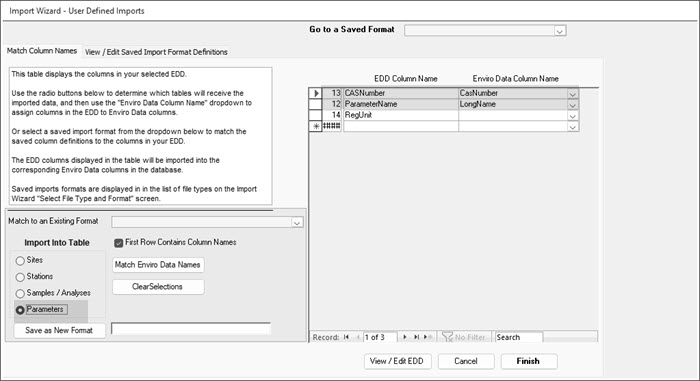
In the botom-left make sure you click the Parameters radio button.
You should also ensure that the EDD Column Names match the Enviro Data Column Names.
Click Finish to add the new parameters to the Parameters table.
Again, any duplicated parameters will not be imported and any with a differently spelled name will create a duplicate in the Parameters table.