It is not unusual to receive import files supplied by the laboratory that do not match the Parameter Names in your database. Enviro Data provides a simple fix this: Parameter Aliases.
NOTE THIS ARTICLE IS DISCUSSING ONLY PARAMETERS THAT ARE IN YOUR PARAMETERS TABLE THAT HAVE A DIFFERENT PARAMETER NAME OR SPELLING THAN WHAT IS BEING IMPORTED.
When exporting tables or reports from the Enviro Data Viewer, you can select to Un-Alias Parameters in the Display Options form Display Details section. Enviro Data provides an option to alias parameters with different spellings to their synonyms in the Enviro Data Parameters table. Enviro Data remembers that alias and can convert back to the original terminology during retrieval.
Add an Alias Using the Import Wizard
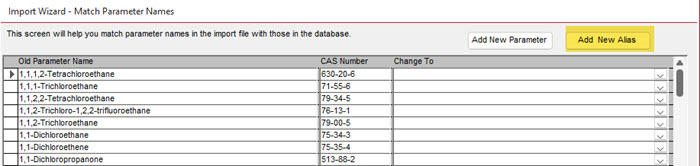
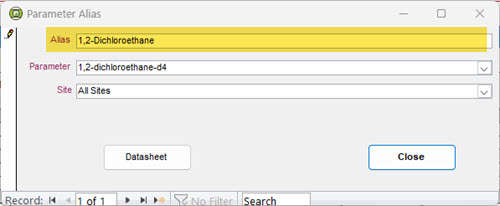
You can add an alias when importing new data. This includes Sites, Stations and Parameters. Any Parameter Names that are not found in the database and NOT ALREADY ALIASED, will be presented by a form that allows you to add them as a new parameter or add and aliases for an existing parameter. That form is below and is a part of the Import Wizard - Match Parameter Names. That process is not discussed in depth this FAQ but basically you select the parameter that you need to change, click on Add New Alias, and then select the correct parameter from the Parameter dropdown on the Parameter Alias form.
Import a List of New Aliases
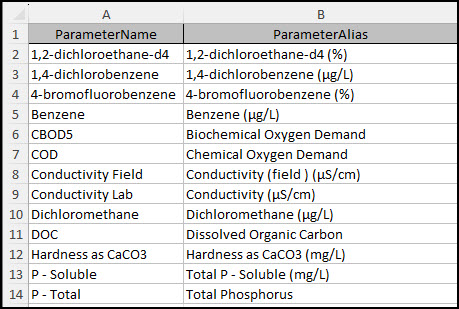
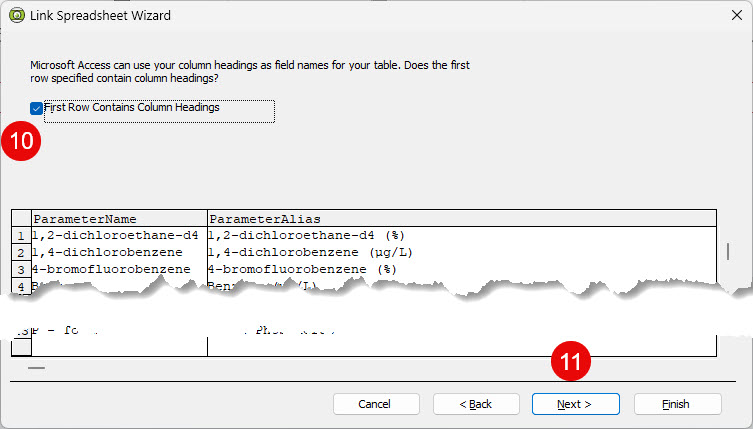
- Make an Excel file with the ParameterName to be matched and the ParameterAlias Needed. (Do not use spaces in the headers.) The column layout should be similar to the one below, including the Header Names.
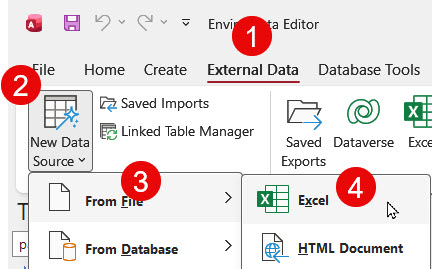
From the Access Menu, Click on External Data, New Data Source, From File and then Excel as shown below.
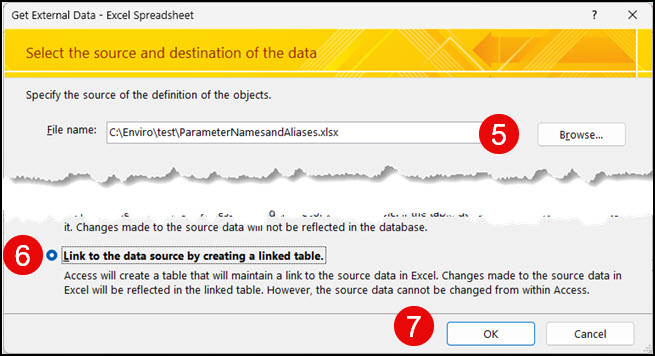
This will open the Get External Data - Excel Spreadsheet form where you will (5) select the file you created, (6) Link it and then (7) click OK to save it.
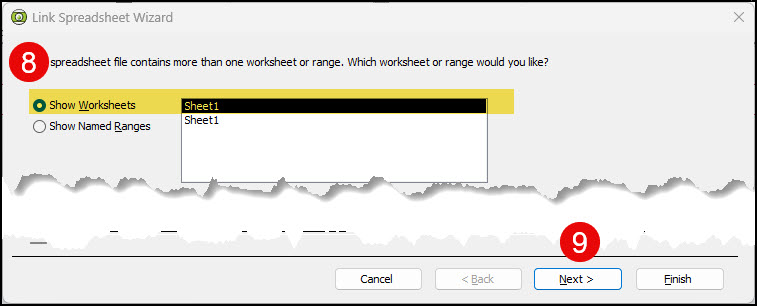
Next, the Link Spreadsheet Wizard form where you will Select the worksheet (if more than one in the spreadsheet.
Now, check the First Row Contains Column Headings option. IF THESE ARE NOT EXACTLY AS SHOWN ABOVE, EDIT YOUR SPREADSHEET AND START OVER.
On the next form, name the linked spreadsheet "import-parameter-aliases" and click Finish.
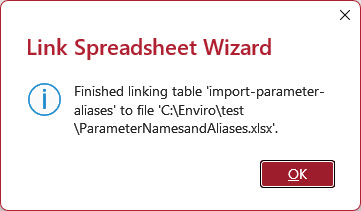
Next you will Create an Access SQL Query to import your Aliases into the ParameterAlias table.
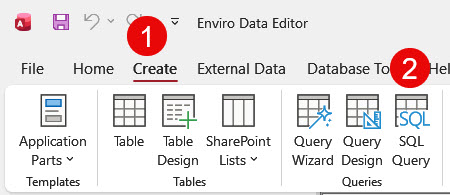
When the query opens, it will have the word "1 SELECT:" in it. ake sure you paste the following over what is there making sure the all the names match.